
ASUS ProArt PA248QV 24 Inch WUXGA 16:10 Professional Monitor
4.6Editor score
100% sRGB Color Space
WUXGA Resolution Display
5-Year Warranty Included
Finding the right display is crucial for creative professionals who need precise color reproduction and reliable performance. The ASUS Proart Monitor series offers a wide range of options designed specifically for photographers, video editors, and designers who demand accuracy and efficiency in their daily tasks.
We have carefully analyzed ten top models from the ASUS Proart lineup to help you make an informed decision. Our comparison focuses on key aspects like color gamut coverage, resolution, connectivity options, and ergonomic features that matter most in a professional workspace environment.
Each pick in this list highlights specific strengths and ideal use cases to match your unique needs. Please note that product availability and pricing can change over time, so we recommend checking the latest details before making your final purchase decision.
4.6Editor score
4.2Editor score
As an Amazon Associate we earn from qualifying purchases.
This table provides a side-by-side overview of all ten models to help you quickly compare their key specifications and find the right fit for your workspace.


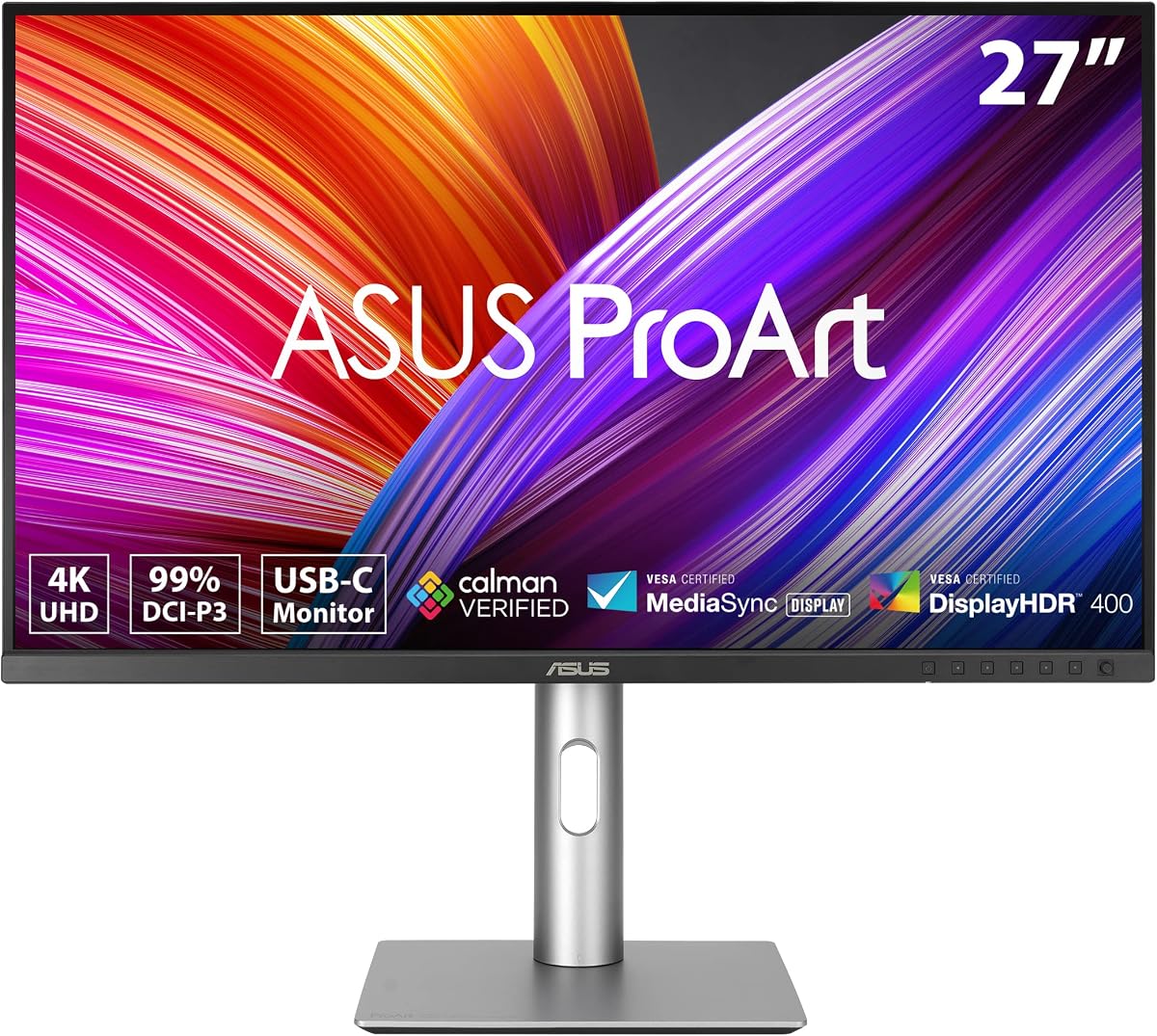
This monitor stands out as a top choice for creative professionals who need reliable performance and accurate color reproduction. With a rating of 4.2, it offers a balance of high resolution and professional-grade calibration that appeals to designers and editors.
We may earn a commission when you buy through this link, at no additional cost to you.
The 27-inch 4K display provides crisp visuals with 99% coverage of both DCI-P3 and Adobe RGB color spaces. Factory calibration ensures Delta E is less than 2, meaning colors appear true to life right out of the box without additional tweaking.
While it is priced higher than some budget options, the included five-year warranty and free three-month Adobe Creative Cloud subscription add significant value. The only minor trade-off is the stand's footprint which may require some desk space.
This model is ideal for professionals working on Mac systems who need seamless connectivity via USB-C. If you prioritize color precision and versatile connections, this monitor delivers the quality needed for demanding creative workflows.
Calman Verified certification and factory calibration ensure consistent and precise colors for critical editing tasks.
USB-C with 96W power delivery lets you connect and charge laptops with a single cable for a clean setup.
We may earn a commission when you buy through this link, at no additional cost to you.
This model proves that professional color accuracy does not have to come with a high price tag. It is an excellent entry-level option for students or freelancers who need reliable performance without breaking the bank.
We may earn a commission when you buy through this link, at no additional cost to you.
Featuring a WUXGA resolution and 100% sRGB coverage, this monitor delivers sharp images and vivid colors. The anti-glare technology reduces eye strain, making it suitable for long editing sessions in various lighting conditions.
The lack of USB-C and smaller 24-inch screen are the main compromises compared to higher-end models. However, for basic photo editing and graphic design, the performance remains impressive and meets industry standards.
If you are looking for a cost-effective solution that still offers Calman Verified accuracy, this monitor is a strong contender. It is particularly well-suited for home offices or secondary workstations.
Delta E less than 2 calibration ensures professional-grade color fidelity at a budget-friendly price point.
Height adjustable stand and anti-glare features help maintain comfort during extended work periods.
We may earn a commission when you buy through this link, at no additional cost to you.
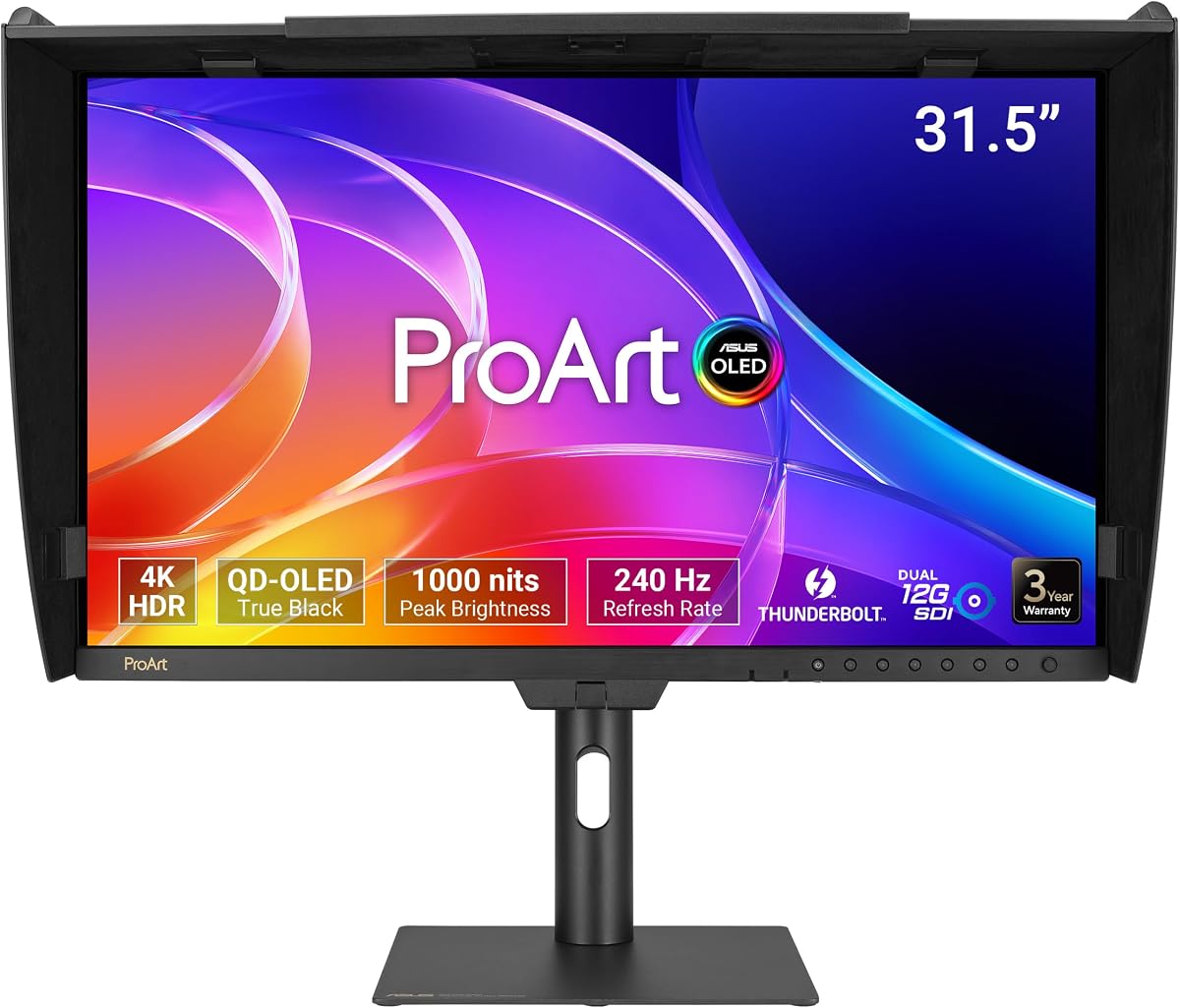
This represents the pinnacle of display technology for professionals who demand the absolute best in image quality. The OLED panel delivers perfect blacks and infinite contrast which are essential for high-end video grading and color work.
We may earn a commission when you buy through this link, at no additional cost to you.
With a 240 Hz refresh rate and 0.1 ms response time, this monitor handles smooth motion rendering exceptionally well. The peak brightness of 1000 nits ensures HDR content looks vibrant and detailed even in bright environments.
The main trade-offs are the premium cost and the complexity of the setup which includes specialized cables and a monitor hood. These factors make it less suitable for casual users but perfect for dedicated production studios.
For broadcast professionals or high-end colorists who need SDI connectivity and true black performance, this model is unmatched. It is a significant investment but delivers results that justify the price for serious users.
QD-OLED technology provides exceptional contrast and color volume for the most demanding visual tasks.
Dual 12G-SDI ports enable uncompressed 4K playback ideal for professional broadcast and post-production.
We may earn a commission when you buy through this link, at no additional cost to you.
This model offers a great balance of performance and price for users who do not need 4K resolution. It is an excellent choice for coding, general productivity, and moderate photo editing tasks.
We may earn a commission when you buy through this link, at no additional cost to you.
The 1440p resolution provides sharp text and clear images without requiring heavy graphics card resources. USB-C connectivity with 65W power delivery allows you to charge most laptops while working with a single cable.
The 90-degree pivot feature is particularly useful for developers who prefer vertical screens to read code. While brightness is standard, the color accuracy remains professional with Delta E less than 2 and sRGB coverage.
Ideal for professionals who want a reliable daily driver with good connectivity features at a reasonable price. It is a solid step up from budget monitors with better ergonomics and build quality.
90-degree pivot capability enables comfortable vertical orientation for coding or document reading.
USB-C allows for streamlined desk setups with data transfer and charging via one cable.
We may earn a commission when you buy through this link, at no additional cost to you.
This model stands out with a perfect five-star rating indicating high customer satisfaction and reliable performance. It combines professional color standards with essential features that make it a favorite among daily users.
We may earn a commission when you buy through this link, at no additional cost to you.
Factory calibration ensures Delta E is less than 2 which is vital for any color-critical work. The inclusion of Eye Care technology like flicker-free and low blue light helps reduce fatigue during long work hours.
The lack of USB-C might be a drawback for Mac users but standard DisplayPort and HDMI work well for Windows PCs. The USB hub adds convenience for connecting peripherals directly to the monitor.
If you need a proven workhorse with excellent color accuracy and comfort features this is a highly recommended option. It is suitable for designers and editors who value reliability and ease of use.
Flicker-free and low blue light technologies help prevent eye strain during extended work sessions.
Perfect rating reflects consistent quality and reliable performance valued by professional users.
We may earn a commission when you buy through this link, at no additional cost to you.
This 32-inch model offers expansive workspace that is ideal for multitasking and handling multiple windows simultaneously. It is particularly well-suited for professionals using Apple devices due to its robust USB-C connectivity.
We may earn a commission when you buy through this link, at no additional cost to you.
With 96W power delivery you can charge most MacBook models while driving the 4K display through a single cable. The TAA compliance makes it a viable option for government projects or procurement requirements.
The larger screen size means it requires a deeper desk and more space for the stand. However the visual benefits of the extra screen real estate often outweigh the space constraints in dedicated studios.
If you need a large high-resolution display that integrates seamlessly with a Mac workflow this is an excellent choice. It balances size, performance, and connectivity to support professional creative tasks efficiently.
USB-C with 96W power allows single-cable connection and charging for modern Apple laptops.
TAA compliance meets specific requirements for government purchasing and enterprise contracts.
We may earn a commission when you buy through this link, at no additional cost to you.
This model pushes the envelope with a 6K resolution that provides exceptional clarity for detailed work like architectural rendering or high-end design. It is designed specifically to integrate with Mac ecosystems effectively.
We may earn a commission when you buy through this link, at no additional cost to you.
The MacBook Color Matching preset ensures seamless transition between the monitor and laptop screen colors. Auto KVM switching allows you to control two connected computers with one keyboard and mouse which boosts productivity.
Light Sync technology uses ambient and backlight sensors to maintain consistent performance in changing lighting conditions. This ensures that your workflow remains accurate throughout the day without manual adjustment.
For professionals working primarily on Mac systems who need maximum resolution and seamless ecosystem integration this monitor is unmatched. It is a top-tier choice for those who demand the highest visual fidelity.
Built-in presets and Thunderbolt 4 ensure optimal compatibility with macOS display settings and workflow.
Auto KVM switching enables easy management of multiple computers without changing peripheral hardware.
We may earn a commission when you buy through this link, at no additional cost to you.
This monitor offers mini-LED technology which provides better contrast and brightness control than standard LCD panels. It is designed to support professional HDR workflows with strong color fidelity out of the box.
We may earn a commission when you buy through this link, at no additional cost to you.
A standout feature is the included X-rite i1 Calibrator which allows you to maintain precise color accuracy over time. This eliminates the need to purchase a separate calibration device for professional accuracy.
While it has a lower average rating some users appreciate the high brightness and professional tools it offers. The hardware calibration capability ensures the display can be optimized to your specific environment.
If you work with HDR content and need a reliable tool to manage color accuracy this model offers great value. The included calibration tool makes it a compelling option for serious creators who want control.
X-rite i1 Calibrator enables precise color management without needing additional hardware purchases.
Mini-LED backlighting supports HDR formats for enhanced dynamic range in video and photo work.
We may earn a commission when you buy through this link, at no additional cost to you.
This model combines professional color accuracy with gaming-friendly features like a 144 Hz refresh rate. It is a versatile choice for users who need a single display for both work and leisure activities.
We may earn a commission when you buy through this link, at no additional cost to you.
With 95% DCI-P3 coverage and Calman Verified accuracy it handles creative tasks reliably while FreeSync ensures smooth motion for gaming. The USB-C port with 90W power delivery supports high-performance laptops effectively.
It is an ideal hybrid option if you are a developer or editor who also enjoys gaming after hours. You get professional color performance without sacrificing the smoothness needed for interactive content.
For anyone looking for a do-it-all monitor that can switch between work and play seamlessly this is a smart pick. It offers broad connectivity and solid performance across different use cases efficiently.
High refresh rate and color accuracy allow smooth gaming and precise editing on one display.
USB-C with 90W power enables charging fast laptops while maintaining full display functionality.
We may earn a commission when you buy through this link, at no additional cost to you.
This represents one of the brightest displays available with 1600 nits peak brightness which is vital for HDR grading and high-dynamic-range work. It uses mini-LED technology to provide deep blacks and high contrast in bright environments.
We may earn a commission when you buy through this link, at no additional cost to you.
The local dimming zones with 1152 zones allow for precise control over light output which reduces blooming and improves image quality. This makes it suitable for professional post-production and mastering workflows.
While the high brightness is impressive it comes with a premium price tag and higher power consumption. The included calibrator helps maintain accuracy but the cost may be prohibitive for some users.
If you work with bright HDR content or need maximum brightness to compete with ambient light this is a powerful tool. It is designed for professional studios where performance and fidelity are the highest priorities.
1600 nits peak brightness ensures visibility and accuracy even in brightly lit professional studios.
Over 1100 local dimming zones allow precise control of light for deep blacks and sharp detail.
We may earn a commission when you buy through this link, at no additional cost to you.
Selecting the right monitor involves understanding your workflow needs and technical requirements. This guide covers the essential factors to consider when choosing from the ASUS Proart series.
Resolution determines how sharp and detailed your images appear on screen. For professional video editing or photo retouching 4K or higher resolutions are typically recommended to see fine details clearly. Screen size affects how much workspace you have with larger screens allowing more windows to be visible simultaneously.
Choose a size that fits your desk comfortably and a resolution that matches your computer's output capabilities to ensure smooth performance.
Color accuracy is critical for creative work to ensure your output matches client expectations and industry standards. Look for monitors with high sRGB or Adobe RGB coverage and factory calibration with Delta E less than 2 for reliable results. Wider color gamuts like DCI-P3 are essential for HDR video and modern content creation.
Prioritize factory calibration and color space coverage that matches your specific industry standards to avoid color correction delays.
Connectivity determines how easily you can connect your devices to the monitor. USB-C with Power Delivery is invaluable for Mac users as it allows both data transfer and laptop charging through a single cable. DisplayPort and HDMI options should match your graphics card outputs to support high resolutions and refresh rates effectively.
Check that the monitor supports the necessary ports for your setup including power delivery requirements for your laptop to avoid needing separate adapters.
A comfortable workspace is essential for health and productivity during long work sessions. Look for stands that offer height adjustment tilt swivel and pivot features to position the screen at eye level and reduce neck strain. Some models even offer VESA mounting options for custom arm setups.
Invest in ergonomic adjustability to maintain proper posture and reduce physical fatigue during extended periods of work.
While often associated with gaming refresh rate and response time affect motion smoothness in video editing and animation. Higher refresh rates like 120Hz or 144Hz provide smoother previews when scrubbing through video clips or working with motion graphics. Quick response times reduce ghosting ensuring clear images even during movement.
If you work with dynamic content prioritize higher refresh rates to ensure fluid previews and a responsive editing experience.
Panel technology dictates the contrast brightness and color capabilities of the display. IPS panels offer wide viewing angles and consistent colors ideal for collaborative workspaces. OLED or mini-LED panels provide superior contrast and brightness for HDR workflows but may come at a higher cost.
Select a panel type based on your need for contrast versus viewing angle performance to get the best value for your specific use case.
Professional monitors are investments that should come with solid protection. ASUS offers extended warranties including options to extend coverage through online registration. Check what is included in the package such as calibration reports and cables to ensure you have everything needed for immediate use.
Look for comprehensive warranty terms and included accessories to maximize the value and longevity of your purchase.
Balancing cost with performance is key to finding the right model for your needs. Higher-end models offer more features like higher brightness and advanced connectivity but budget models often meet standard professional needs. Consider how much you will use the monitor daily to justify a higher investment.
Compare features against your daily requirements to choose a model that delivers the best balance of cost and capability for your workflow.
To begin set up your monitor on a stable surface and connect it using the appropriate cables such as USB-C or DisplayPort. Ensure your computer settings match the monitor's native resolution and refresh rate for optimal visual quality.
Use the on-screen display controls to adjust brightness and contrast based on your lighting conditions. Many models include preset modes for different tasks like photo or video editing to simplify your daily workflow.
Keep the screen clean with a soft microfiber cloth to avoid scratches and maintain clarity. Avoid placing the monitor in direct sunlight to prevent glare and potential long-term damage to the panel surface.
Yes most ASUS Proart monitors support Mac systems via USB-C or HDMI connections. Many models specifically include features like MacBook color presets and Thunderbolt support for seamless integration with macOS environments.
Factory calibration means the monitor is tested and adjusted at the factory to meet specific color accuracy standards before shipping. This ensures Delta E values are less than 2 out of the box saving you the time and cost of calibration software.
USB-C is often preferred for Mac users because it can carry both video and power through a single cable. DisplayPort is still excellent for Windows setups as it typically supports higher refresh rates for specific resolutions.
Many models in the Proart series support HDR10 or DisplayHDR 400. Higher-end models with mini-LED or OLED panels offer more advanced HDR formats like Dolby Vision for professional mastering workflows.
Yes several models support daisy-chaining via DisplayPort or Thunderbolt to connect multiple screens with one cable. Check the specific model's connectivity options to ensure it supports multi-monitor setups with your system.
Most models come with a three-year standard warranty that can be extended to five years with online registration. Some packages also include accessories like cables and calibration reports to support immediate setup.
We have reviewed ten top models ranging from budget-friendly options to premium OLED displays. Each offers unique strengths in color accuracy resolution and connectivity to suit different professional needs.
Prioritize the features that matter most to your workflow whether that is screen size color gamut or ergonomic adjustability. A good monitor will enhance your daily work and protect your investment for years.
Prices and availability can change so check current listings for the latest deals. Use this guide to narrow down your choices and find the perfect ASUS Proart Monitor for your creative projects.