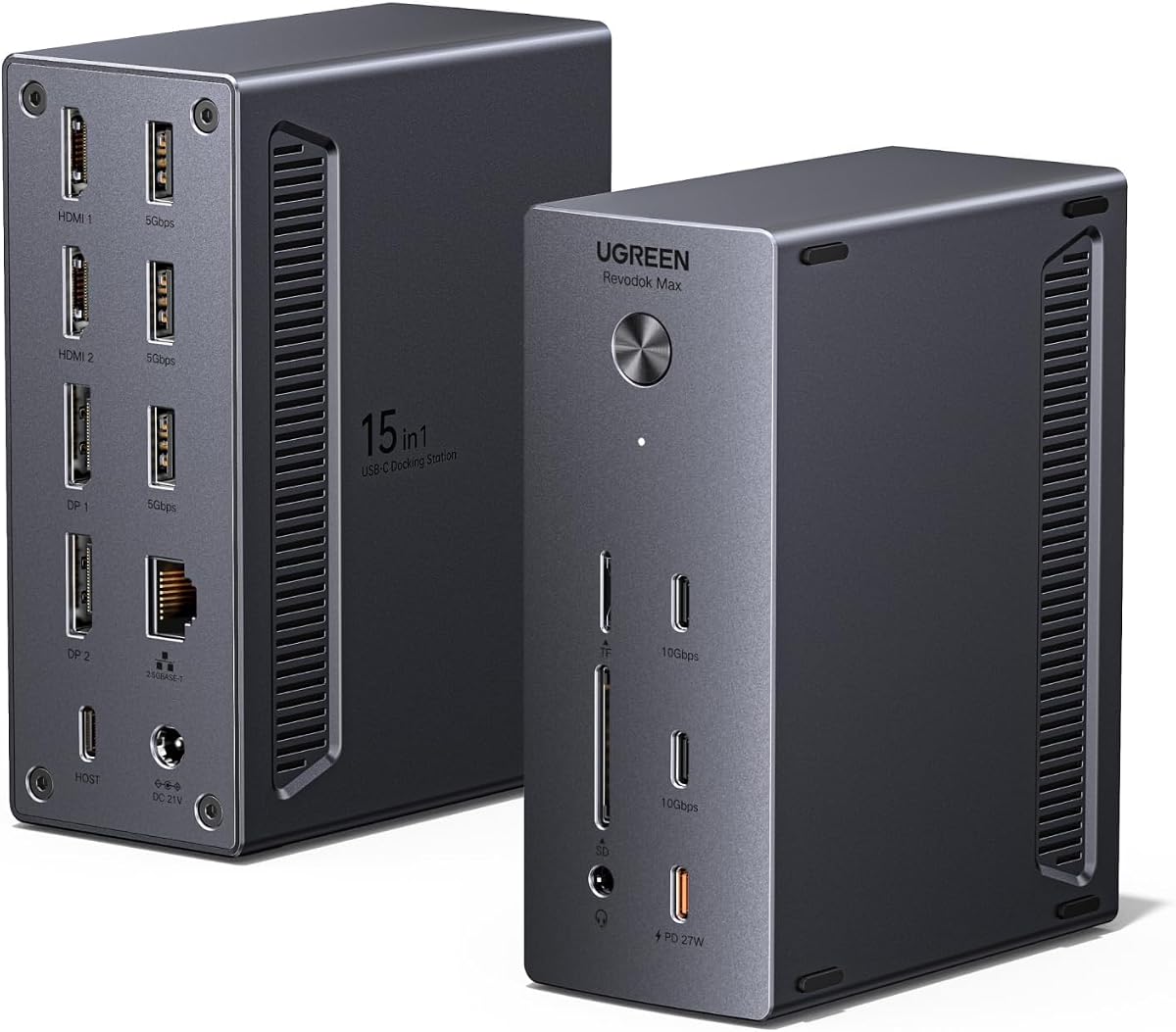
UGREEN USB-C DisplayLink Docking Station
4.6Editor score
8K Display Capability
15-in-1 Expansion
2.5 Gigabit Ethernet
Dual Charging Ports
This guide compares the top 10 docking stations with quad monitor support to help you find the perfect multi-display workstation setup for your needs.
Creating a productive workspace often requires multiple screens to manage complex tasks efficiently. Docking stations with quad monitor support allow you to connect four displays simultaneously, transforming a single laptop into a powerful desktop environment.
We have analyzed the latest models based on compatibility, port selection, and display capabilities. Our list covers options for various budgets and operating systems, ensuring you find a solution that fits your specific workflow requirements.
Each pick highlights key features and potential limitations to guide your decision. Keep in mind that availability and pricing can change frequently, so verify current details before making your final purchase decision.
4.6Editor score

4.7Editor score

4.5Editor score
This side-by-side comparison highlights the core specifications of each docking station to help you quickly identify which model offers the features you need for your specific setup.
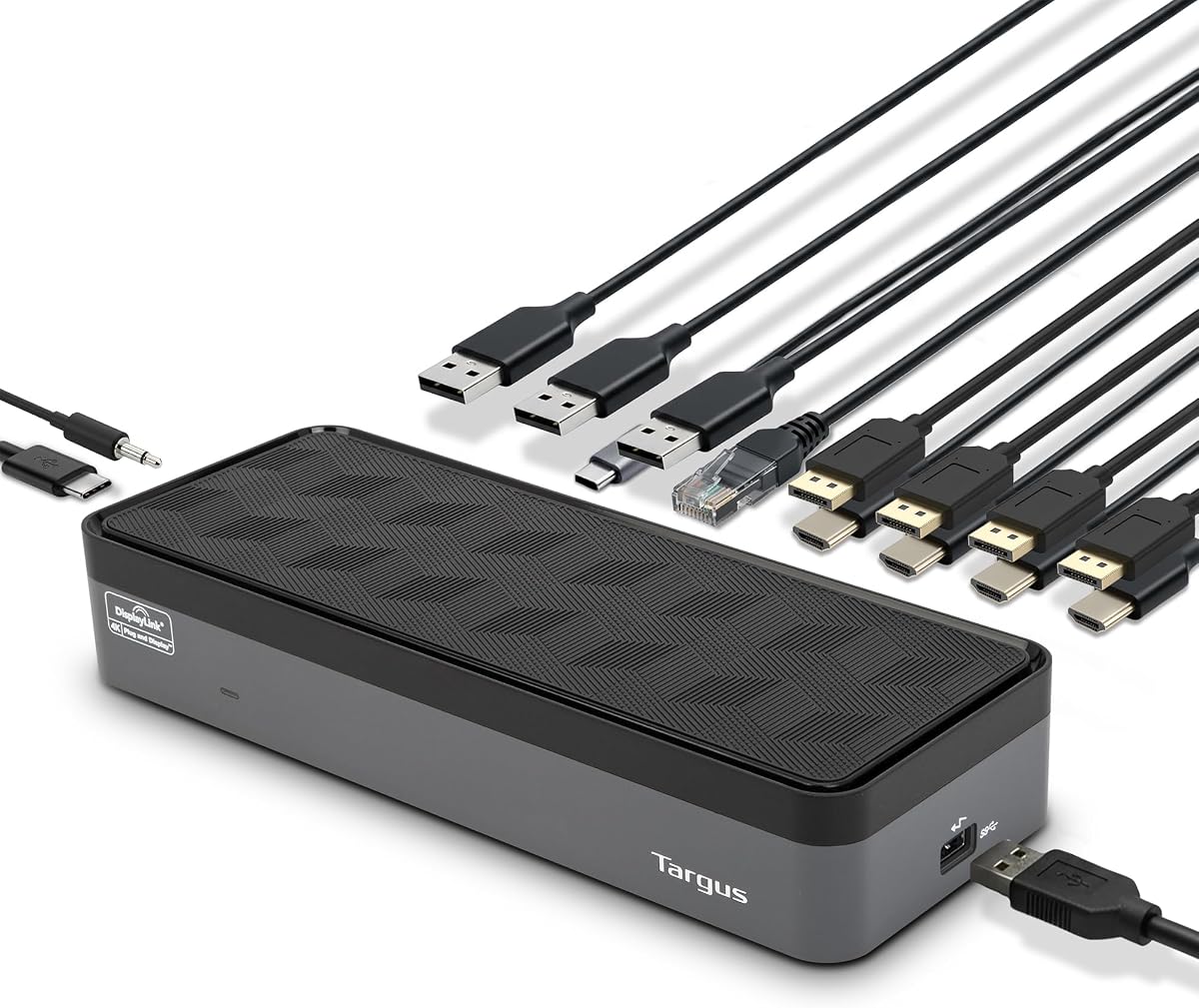

The Targus USB-C Universal Quad 4K Docking Station earns our Editor's Choice for its robust feature set and reliable performance. It allows users to connect up to four 4K UHD displays or a single 5K display via DisplayPort or HDMI outputs.
We may earn a commission when you buy through this link, at no additional cost to you.
This station excels in providing ample connectivity with five USB ports including Type-C and Type-A options. It also features Gigabit Ethernet and audio ports, making it a complete hub for peripherals. The included power tips ensure compatibility with many legacy laptops from brands like Dell and HP.
While it requires driver installation for DisplayLink functionality, this is standard for multi-monitor setups. The bulkier design is a trade-off for the extensive port selection and power delivery capabilities it offers.
Users seeking a versatile universal dock that supports high-resolution displays and diverse peripherals will find this model ideal. It balances performance and connectivity effectively for professional workstations.
Connect four 4K monitors for maximum productivity with clear crisp visuals.
Adapter tips included ensure connection with major legacy laptop brands.
We may earn a commission when you buy through this link, at no additional cost to you.
The TobenONE DisplayLink Docking Station stands out for its extensive port selection and strong power delivery. It features eighteen ports total allowing connections for multiple displays and peripherals simultaneously.
We may earn a commission when you buy through this link, at no additional cost to you.
It supports triple or quad 4K extended displays on Windows and up to three on macOS. The 120W power adapter charges laptops and phones while keeping the dock powered for stable operation.
Linux and Unix systems are not supported which may limit some users. Additionally streaming services like Netflix cannot be watched due to DisplayLink recording restrictions.
This station is perfect for home office professionals needing many connections without sacrificing power charging. The lifetime support ensures long-term reliability for your workstation.
Connect many peripherals with 18 ports including USB HDMI and Ethernet.
Charges laptop and phone simultaneously with the included adapter.
We may earn a commission when you buy through this link, at no additional cost to you.
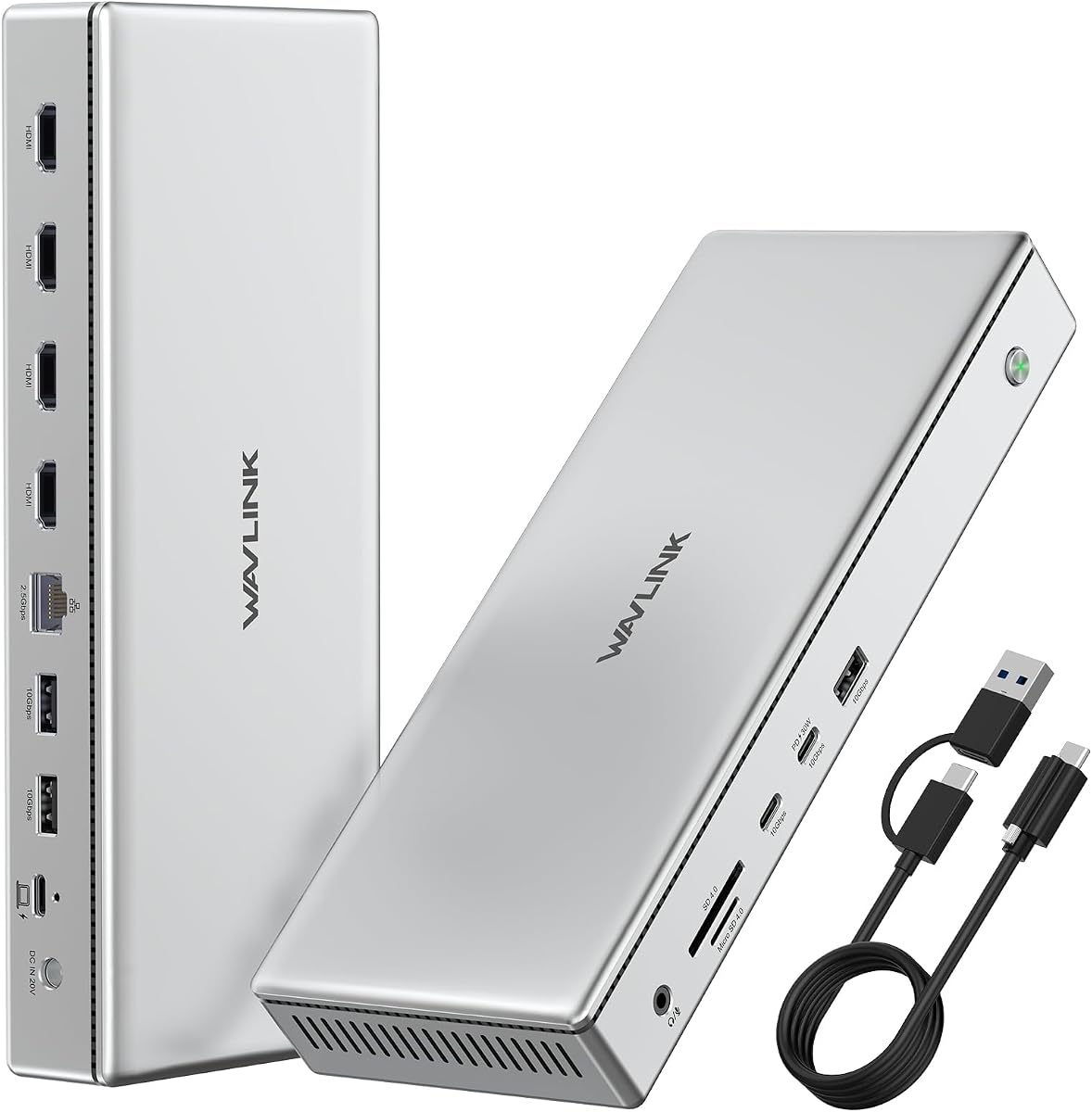
The WAVLINK Pro Docking Station offers a premium aluminum build and robust connectivity for professionals. It features four 4K HDMI outputs via DisplayLink which helps break Mac display limits.
We may earn a commission when you buy through this link, at no additional cost to you.
It includes a 160W power adapter ensuring ample charging for laptops and devices. High-speed 2.5G Ethernet and SD card readers support fast file transfers for editors.
User reviews are average compared to others suggesting some consistency issues. Driver installation is necessary to enable the full DisplayLink functionality on all systems.
This model suits creators needing high-speed data and multiple HDMI screens in a sleek design. The build quality and power capabilities justify the investment for power users.
Enjoy 10Gbps speeds and fast SD card reading for media files.
Connect four 4K displays on Mac beyond standard limitations.
We may earn a commission when you buy through this link, at no additional cost to you.
The StarTech Thunderbolt 5 Universal Docking Station is designed for reliability and ease of deployment. It offers true driverless plug-and-play performance which reduces help desk tickets significantly.
We may earn a commission when you buy through this link, at no additional cost to you.
It supports dual 6K displays on Apple Silicon and quad 4K on Windows. The 140W power delivery ensures laptops stay charged during heavy multitasking sessions.
Higher cost and specific Thunderbolt 5 requirements may limit general adoption. However the robust testing and security features make it suitable for enterprise environments.
IT professionals should choose this dock for its stability and simplified setup across shared workspaces. It delivers consistent performance that minimizes downtime.
Install quickly without OS specific workarounds for shared desks.
Unlock 6K resolution potential on latest MacBook Pro models.
We may earn a commission when you buy through this link, at no additional cost to you.
The TobenONE 18-in-1 DisplayLink Docking Station offers maximum connectivity with eighteen ports. It includes four HDMI ports supporting up to four external displays on Windows.
We may earn a commission when you buy through this link, at no additional cost to you.
The 120W power adapter provides enough power for laptops and phones. USB data transfer is fast ensuring smooth file operations during work.
MacBook users are limited to three displays due to OS constraints. Linux and Unix systems are also not supported which restricts some users.
This dock is ideal for Windows users needing many peripheral connections and multiple screens. The port variety ensures you do not need extra hubs.
Connect all devices with 18 ports including USB HDMI and SD.
Unlock multitasking potential with up to four screens.
We may earn a commission when you buy through this link, at no additional cost to you.
The UGREEN USB-C DisplayLink Docking Station delivers high-resolution support with 8K capabilities. It includes dual USB-C data ports and a 2.5 Gigabit Ethernet port for fast networking.
We may earn a commission when you buy through this link, at no additional cost to you.
The 150W adapter ensures robust power delivery though it shares dynamically. This station provides a comprehensive desktop expansion in a single USB-C connection.
Drivers must be installed to enable DisplayLink functionality. Power sharing limits may reduce laptop charging speed when peripherals draw power.
This dock suits users needing high bandwidth and resolution support for creative work. It integrates well with modern laptops requiring reliable networking.
Build a workstation with 8K resolution for detailed creative tasks.
Connect with 2.5 Gigabit Ethernet for stable wired internet.
We may earn a commission when you buy through this link, at no additional cost to you.
Details for this product are currently unavailable in the database. We recommend checking the Amazon link for the most accurate specifications.
We may earn a commission when you buy through this link, at no additional cost to you.
Keep an eye on updates for this model as information is added.
Verify availability and user reviews before making a purchase decision.
We will update this section as soon as accurate data is provided.
We may earn a commission when you buy through this link, at no additional cost to you.
Choosing a quad monitor docking station requires balancing display capabilities connectivity and power delivery to fit your specific workflow needs.
Ensure the dock supports 4K or higher resolutions for all connected monitors. Some docks only support 4K at 60Hz while others offer lower refresh rates.
Look for DisplayPort and HDMI combinations that match your monitor inputs.
Verify compatibility with your operating system and laptop model. Mac users often face display limitations compared to Windows.
Check if drivers are required for DisplayLink solutions.
Select a dock with enough wattage to charge your laptop while in use. Most require 100W or more for modern ultrabooks.
Ensure the power adapter supports your device charging needs.
Choose a dock with the necessary USB Ethernet and audio ports. Count your peripherals to avoid missing connections.
USB-C data ports are valuable for modern devices.
Metal housings offer better heat dissipation than plastic. This is important when driving multiple displays.
Check reviews for durability and connector longevity.
USB 3.2 or Thunderbolt connections provide higher bandwidth. This affects data transfer speeds and multi-monitor performance.
Avoid older USB standards if speed is a priority.
DisplayLink solutions need software installation which may impact some systems. Plug-and-play options are available for Thunderbolt connections.
Ensure your OS supports required drivers before purchase.
Physical security slots protect against theft in shared environments. Cable management features help keep desks organized.
Look for docks tested for reliability in professional settings.
Connect your laptop to the dock using the included high-speed cable. Ensure all video ports are connected properly to each monitor.
Install any required drivers before connecting displays. Restart your system to initialize the connection correctly.
Keep the dock in a well-ventilated area to prevent overheating during heavy use. Regularly check cables for wear to maintain stable connections.
Yes but it depends on your laptop and dock. Thunderbolt docks support more displays than standard USB-C. DisplayLink docks allow multiple screens via software.
Yes many support macOS but with limitations. Some docks support fewer displays on Mac. Check specific OS compatibility before buying.
Not all. Thunderbolt docks are usually driverless. DisplayLink docks require software installation to enable multiple displays.
4K is standard for quad setups. Higher resolutions require more bandwidth. Ensure your dock supports 4K at 60Hz.
It depends on available ports. USB 3.0 or higher is recommended. Check if your laptop supports video over USB-C.
Most laptops need 65W to 100W. Choose a dock with 100W output or higher to charge and use simultaneously.
Many docks include 3.5mm audio ports. Check if audio pass-through is available if needed.
Use the included USB-C or Thunderbolt cable. Ensure it supports data and video to avoid connection issues.
Our top picks include the StarTech Thunderbolt 5 for performance and the TobenONE 18-in-1 for budget-conscious users. Both provide solid quad monitor options.
Prioritize display resolution and power delivery when selecting a dock. Ensure it matches your laptop capabilities to avoid bottlenecks.
Verify current availability and pricing as these details change frequently. Check the links for the most up-to-date information.